 OneLLM
ONELLM · Guides
How to use OpenCode on iPhone and iPad.
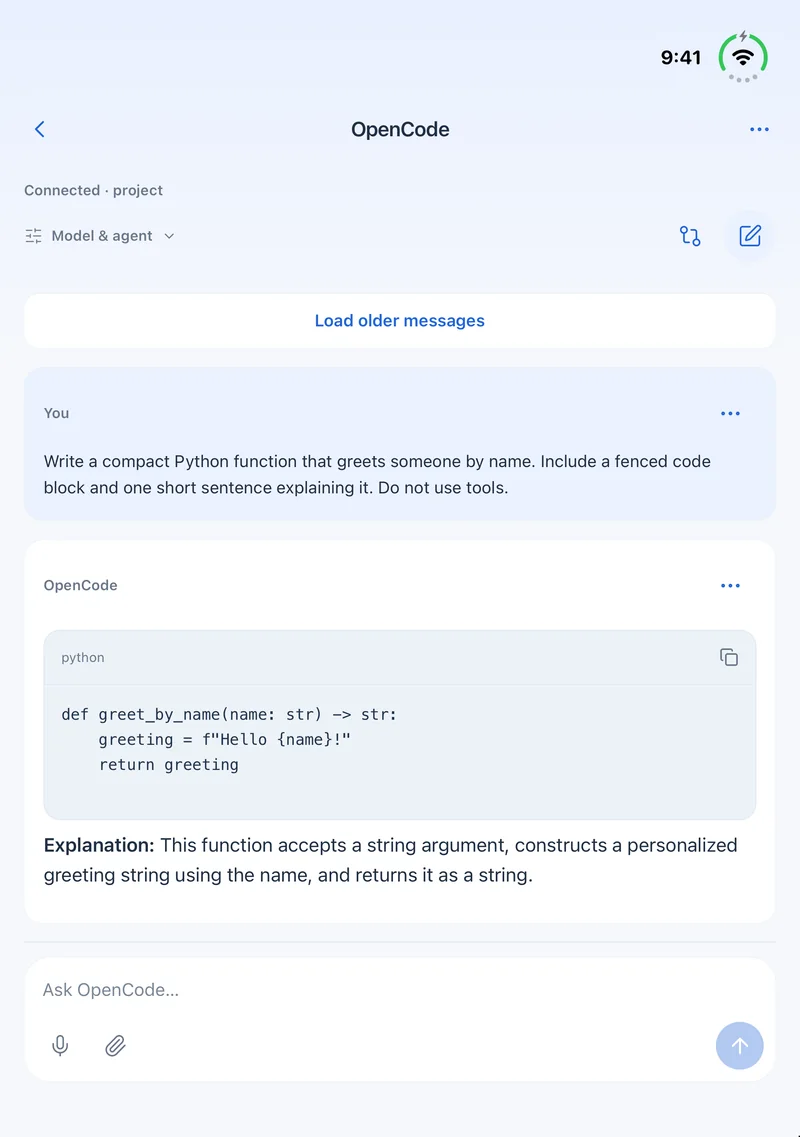
Using OpenCode from an iPhone means connecting to a service on your computer. OneLLM provides an iPhone and iPad client connection; the project files and OpenCode service stay on the computer. OneLLM is independent and is not an official OpenCode mobile app.
Native mobile connection or OpenCode Web?
Swipe horizontally to view the full table.
| Option | Phone experience | Requirements |
|---|---|---|
| OneLLM connection | Scan a connection code in OneLLM’s OpenCode module and open a conversation. | An iPhone or iPad, a running computer, a reachable private network and a configured OpenCode service. |
| Official OpenCode Web | Access the computer’s web interface in a browser. | Run opencode web on the computer and follow its network and password configuration. This is separate from OneLLM’s pairing flow. |
The official Web guide covers browser access, while the Server guide documents the service clients connect to. Both approaches require network access from phone to computer; neither runs the OpenCode coding service locally on an iPhone.
Prepare and pair OneLLM with OpenCode
Install OneLLM on your iPhone or iPad. This site offers computer connector previews for Windows x64, Ubuntu x64 and Ubuntu ARM64. The computer needs Node.js 24 or newer and npm. Read the download requirements and testing status first.
- Open the computer companion.Extract OneLLM Connect. On Ubuntu, run
./onellm-connectin the extracted directory. Use the project you intend to work on. - Select OpenCode.Click Install tools, choose OpenCode, the project directory and a LAN or Tailscale address. Configure the model account required by OpenCode.
- Wait for readiness.Click Connect and wait for Ready to scan. If the service is not ready, resolve its installation or startup error on the computer first.
- Scan in the matching module.In OneLLM, open OpenCode → Scan connection code. A DS Harness code belongs in the DS Harness module.
- Start with a verifiable task.Choose a conversation and ask for a project overview or an error diagnosis. Confirm the directory and result before expanding the task.
Diagnose a mobile connection by its symptom
Swipe horizontally to view the full table.
| Symptom | Check first | Next action |
|---|---|---|
| No Ready to scan | Tool installation, Node.js version and service startup on the computer. | Resolve the startup error, then generate a connection code. |
| Scanning does not connect | The selected module and reachability of the chosen LAN or Tailscale address. | Keep the computer running, generate a fresh code, and check network isolation or firewall settings. |
| Connected, but model calls fail | The model account, available usage and service errors in OpenCode. | Fix the account or configuration on the computer. Re-pairing generally will not fix billing errors. |
| Connection stops away from home | Whether the code used a home-only LAN address. | Check Tailscale connectivity on both devices and pair using the appropriate address. |
| Wrong project appears | The companion’s project directory and selected conversation. | Switch to the correct project before sending further instructions. |
Common questions
Is this an Android version of OpenCode?
No. The OneLLM mobile download on this site is for iPhone and iPad. Windows and Ubuntu packages are computer connectors, not Android APKs. For browser access on other phones, consult the official OpenCode Web documentation and check device compatibility.
Can I use it offline or turn off the computer?
The remote connection needs a network, and a powered-off computer cannot serve OpenCode. OneLLM’s offline local models are a separate workflow and do not replace this computer service.
Does OneLLM include the model usage?
OpenCode uses the model accounts configured on your computer, with separate usage and charges. Installing the mobile client does not grant free model credits.
What is the connector’s release status?
These are unsigned previews. Ubuntu service readiness and related protections have been exercised. Windows runtime validation and full phone, camera and Tailscale acceptance remain in progress. The connectors are separate from OneLLM Office, whose desktop installer is not yet offered here.